Music project backup: Build a 3-2-1 system
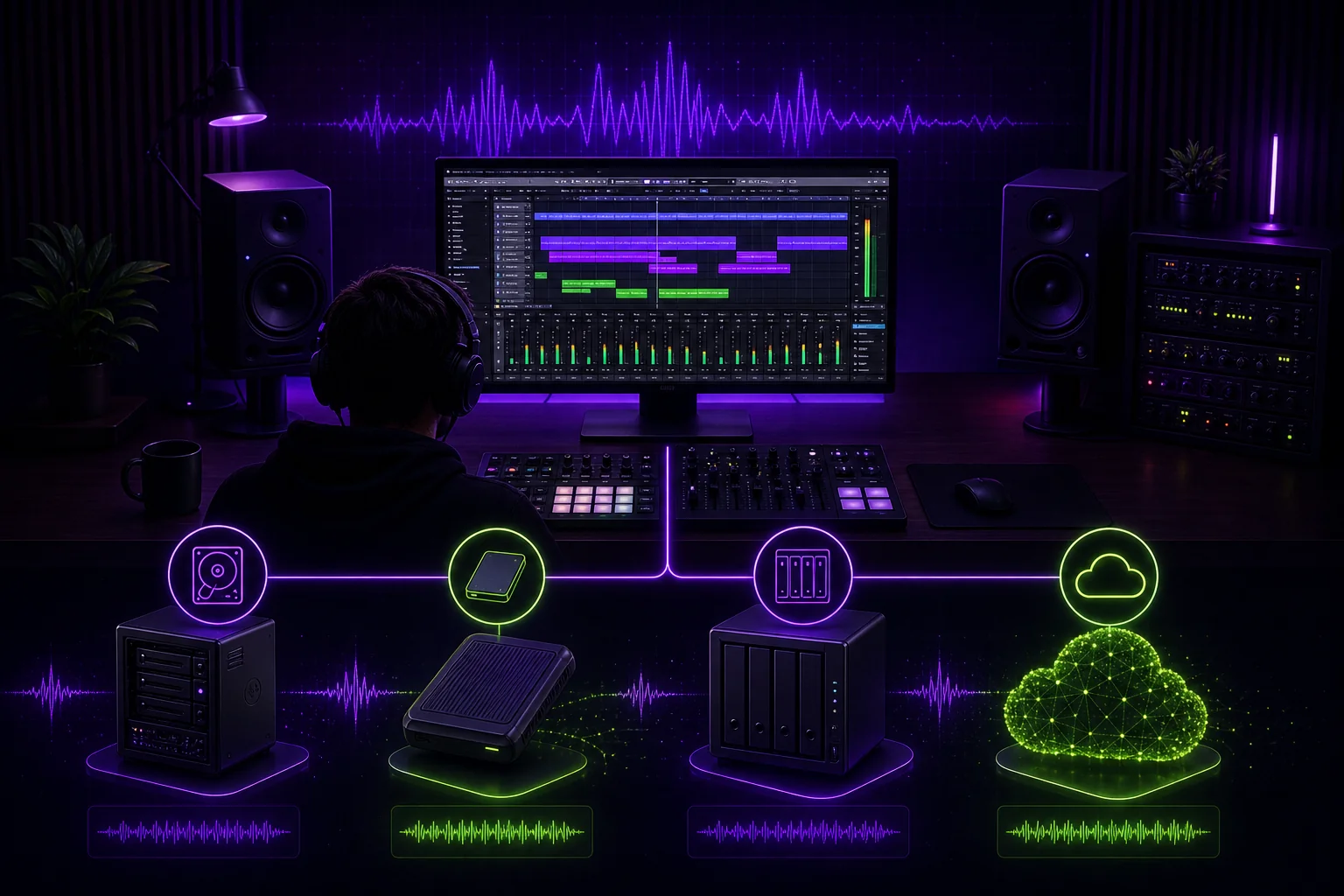
A DAW session is not backed up because you copied it to another folder on the same drive. If that drive fails, both folders disappear together. A reliable music project backup system keeps your working session, raw recordings, stems, and final exports in separate, recoverable copies. The practical approach is the 3-2-1 rule: three copies, two storage types, and one off-site copy. Here is how to apply it to every session without turning studio work into IT support.
Start with the 3-2-1 rule for every music session
The 3-2-1 backup rule means keeping three copies of your data on two different types of storage, with one copy outside your studio.
Those copies are:
- Your original working files.
- A local backup.
- An off-site backup.
Imagine you are producing a vocal-led track in Ableton Live. The active project lives on your studio drive. An automatic backup goes to a NAS or external SSD. A further copy syncs to cloud storage.
If the studio drive fails, you restore from the local backup. If the computer and local backup are lost together, you still have the off-site copy. Studio damage cannot take every copy with it.
The key word is copy. A shortcut to another folder is not a copy. Moving the project from your computer to an external drive is not a backup either. You still have only one instance of the files.
Your backup system also needs different storage roles. Two identical drives connected to the same computer can share the same exposure to accidental deletion or physical loss. The source guide recommends combining options such as internal disks, external SSDs, and NAS storage instead of relying on identical drives from the same manufacturer.
Separate working files, stems, and final exports
A backup is much easier to restore when you know what is inside it. Start with a reusable folder structure:
Song_Name/
├── 01_Working_Session/
├── 02_Raw_Audio/
├── 03_MIDI_and_Plugins/
├── 04_Stems/
└── 05_Exports/
Each folder has a specific job.
Working session
01_Working_Session contains the DAW project and related session files. Keep alternate session versions here rather than scattering them across your desktop, downloads folder, and email attachments.
For example:
Raw audio
02_Raw_Audio contains original vocal takes, instrument recordings, and imported audio. Do not assume that every file used by the DAW is stored inside the session folder. Confirm that recordings and imported samples have actually been collected.
MIDI and plug-in information
03_MIDI_and_Plugins holds MIDI files and saved plug-in settings. Active project files can include DAW sessions, raw audio, MIDI data, and plug-in settings. Keeping these elements together reduces guesswork during recovery.
You can also place a text note here with the DAW edition, plug-ins used, and any unusual routing. This will not replace the software, but it gives you a map when reopening an old production.
Stems
04_Stems contains stems: consolidated audio files representing groups or important parts of the arrangement, such as drums, bass, lead vocals, and backing vocals.
Stems provide a fallback when the original DAW session cannot be rebuilt exactly. A missing plug-in may stop a synth patch from loading, but a rendered synth stem can still play.
Final exports
05_Exports contains approved listening and delivery files. According to the backup guide, a finished catalog should include high-fidelity, organized copies of the 24-bit WAV masters, unmastered mixes, and stems.
A practical archive might look like this:
05_Exports/
├── NightDrive_Unmastered_Mix.wav
├── NightDrive_Master_24bit.wav
└── Approved_Reference/
This structure is easier to maintain when it matches the rest of your music production workflow. Your backup should reflect how the song moves from recording to mix and master.
Apply three copies before closing each session
Treat backup as the last step of the session, not as a separate task you may remember later.
Copy 1: the active project
The first copy is the live DAW project on your studio drive. This is where you record, edit, arrange, and mix.
Keep the project self-contained. Before handing it to a collaborator or archiving it, collect external audio into the project folder where your DAW allows it. Otherwise, the session may open while pointing to samples that existed only in an unrelated folder.
Copy 2: the automatic local backup
The second copy goes to an external SSD or NAS. Active projects are large and can change daily, so the source guide recommends automatic backup while you work and at least a daily backup for current sessions.
Automation matters during recording. After a long vocal session, you should not have to remember which takes changed. The backup process should detect and copy the saved project data in the background.
Check that it is copying the entire song folder, not only the DAW project file.
Copy 3: the off-site backup
The third copy belongs outside the studio. Cloud storage is presented as the simplest way to meet this off-site requirement. Dropbox and Google Drive can synchronize active project folders in the background, sending saved changes to cloud storage.
Synchronization still needs attention. Let large audio files finish uploading before shutting down your computer. A cloud folder icon is not proof that the latest vocal comp has completed its journey.
Save versions instead of overwriting
Use dated session names rather than repeatedly overwriting the same valid file:
Create a new version before a major edit, mix revision, or recording pass. If a plug-in crashes the newest session or an edit removes the wrong take, you can move backward through known versions.
For a deeper workflow, see the role of version control in music production. Backup protects the files. Version control helps you identify which state of the song you need.
Choose SSD, NAS, clone, and cloud storage by role
No storage option needs to do everything.
| Storage option | Best role | Main consideration |
|---|---|---|
| External SSD | Fast local backup and portable sessions | It must be copied elsewhere if it travels with the studio computer |
| NAS | Local network backup for large sessions | It remains part of the studio environment unless replicated off-site |
| Cloud storage | Off-site copy and background synchronization | Large libraries and multitrack sessions can be slow or costly to store |
| Disk clone | Exact copy of the working drive | Store the cloned disk away from the studio |
An external SSD is useful when you move between a writing room and a mix room. It can hold a complete song folder without requiring an internet transfer. It should not become the only copy merely because it is portable.
A NAS is a network-connected computer equipped with hard drives. The backup guide describes it as faster than cloud storage for transferring large multitrack sessions. That makes it useful for a studio with several active projects or machines.
Cloud storage solves a different problem. It provides the off-site location required by the 3-2-1 rule. However, a cloud-only system may be slow and expensive for studios with large sample libraries or heavy multitrack sessions. Read more about selecting cloud storage for full music sessions, rather than judging it by folder capacity alone.
A cloning tool can create an exact copy of the working drive each week. The source recommends taking that cloned disk to another location, such as your home. A clone left beside the original computer does not satisfy the off-site requirement.
Set a backup schedule and verify that files can be restored
A backup schedule can stay simple:
- Use automatic synchronization during active work.
- Back up current projects at least daily.
- Create a weekly clone or offline copy.
- Create an archive checkpoint when stems or final exports are approved.
- Test restoration regularly.
Testing is what separates a backup from a hopeful pile of files.
Choose a copied project and restore it to a different location. Open the copied DAW session. Confirm that the raw audio appears on the correct tracks. Check that samples and plug-in settings load. Inspect the project folders for missing or unexpectedly empty files.
Then play the WAV exports from beginning to end. Confirm that the unmastered mix, master, and stems open normally. For a collaboration, compare an important cue—such as the first lead-vocal entrance—against the approved mix.
Keep an off-site or disconnected copy that cannot be affected by every local deletion. Automatic synchronization is convenient, but convenience is not the same thing as isolation.
Write down the result of each test:
Project: NightDrive
Restored copy: Local backup
DAW session: Opened
Raw audio: Present
Plug-ins: Checked
Stems: Played
Final exports: Played
Notes: No missing files
This turns “I think it backed up” into a repeatable check.
Restore a project after losing the working drive
When a drive fails, avoid improvising. Use a fixed recovery order.
- Prepare a replacement working drive.
- Locate the newest verified backup of the working session.
- Copy the full project folder to the replacement drive.
- Reconnect raw-audio and sample paths.
- Recover the required plug-ins, settings, and licenses.
- Open the session in the same DAW.
- Compare the latest mix against the stored stems and exports.
- Rebuild the three-copy backup set.
Do not open and overwrite the only remaining backup. Restore it to a new working location first.
Suppose the latest Logic session opens with missing audio. Check the raw-audio folder and reconnect the files. If the newest session itself is damaged, move backward through the dated versions. Keep each existing version untouched until you have confirmed a working recovery.
Next, compare the restored session with the approved unmastered mix. If the arrangement matches but a discontinued plug-in is unavailable, use the archived stems to confirm or rebuild the affected part.
Once the project is stable, document what you recovered and what was missing. Then create a new local backup and a fresh off-site copy. Recovery is not complete while the restored project exists on only one drive.
Conclusion
A reliable music project backup system is not a random external drive. It is a repeatable 3-2-1 workflow built around the actual contents of your sessions.
Keep the active project plus two backups. Use different storage types. Keep one copy off-site. Separate working sessions, raw audio, MIDI and plug-in data, stems, and final exports. Save dated versions. Test that your copied projects really open.
A music project workspace such as SoundisiaK Studio can help keep versions, files, and team activity organized alongside this system. It does not replace storage discipline. It gives collaborators a clearer place to work while your backup process protects what they create.