Music Production Workfiles: DAW Sessions Explained
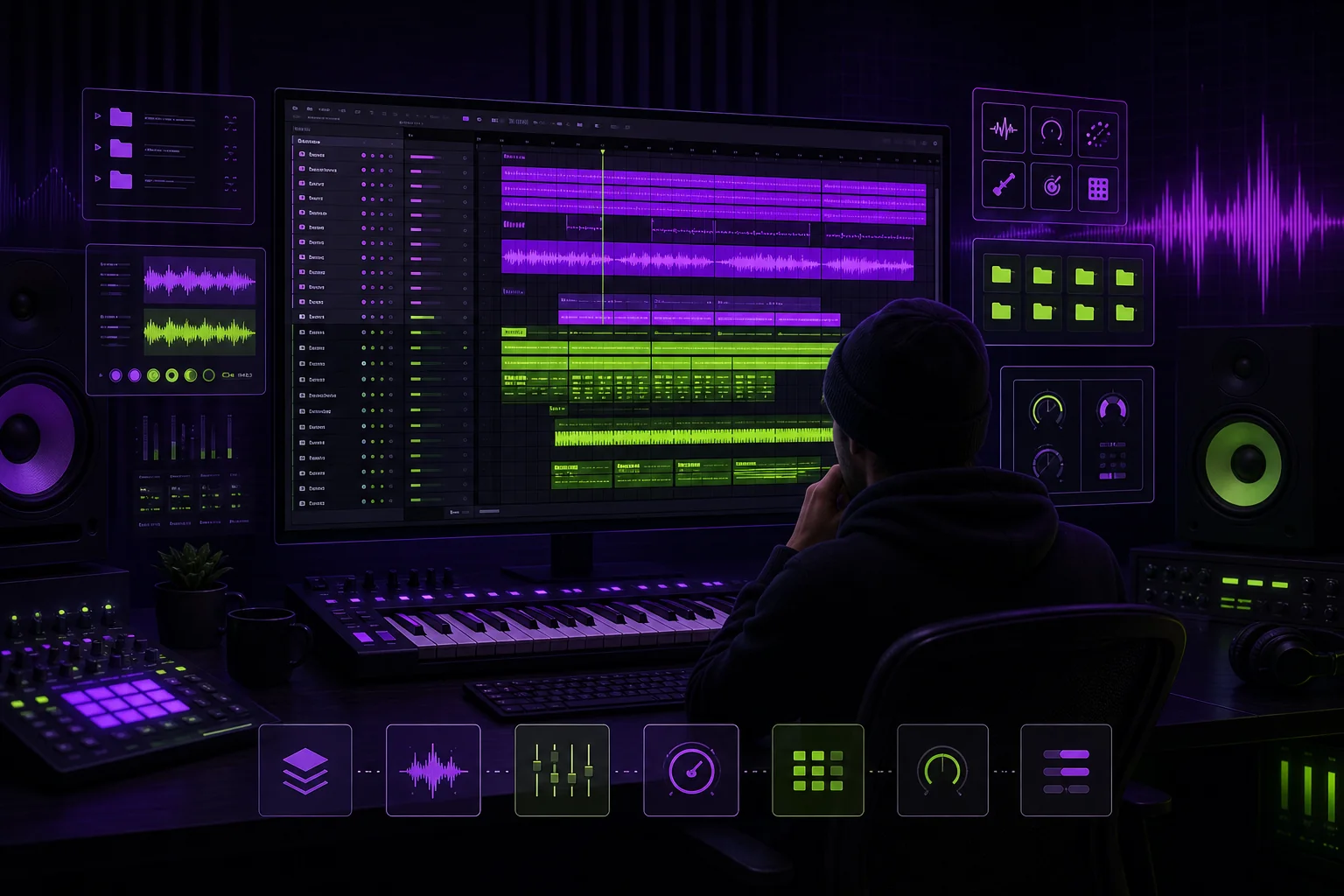
A music production workfile is the editable project inside your DAW. It is not the same as the WAV you send for feedback. It is also not automatically ready for another producer to open.
That distinction matters when you hand a song to a mixer, vocalist, or co-producer. Send only the workfile, and their screen may fill with missing-media warnings. Send only a bounce, and they cannot change the arrangement. Here is how each file type works—and how to prepare a session that survives the trip.
What Is a Music Production Workfile?
A music production workfile is the native project created by your digital audio workstation, or DAW. If you need the broader definition first, read this guide to what a DAW does.
The workfile stores the instructions that define your production. Depending on the DAW and project, it may contain:
- Tracks and track names
- Audio and MIDI regions
- Edits and arrangement decisions
- Tempo and time-signature information
- Automation
- Mixer levels and panning
- Sends, buses, and routing
- Plug-in states
- Virtual instruments
- References to recorded or imported media
- Project markers and notes
The important word is references. A workfile does not necessarily contain every recording, sample, or impulse response used by the project. It may point to media stored elsewhere on your drive.
That is why a session can open correctly on your computer but arrive empty on your collaborator’s machine. The instructions made the journey. The kick sample living in your Downloads folder did not.
Consider a vocalist recording over a producer’s instrumental. The producer’s workfile may reference drum samples, guitar recordings, and a custom reverb impulse. The vocalist adds lead and harmony takes. If they return only the native DAW file, the producer may receive the vocal edits but not the actual recordings.
A DAW template can make this easier to manage. Templates can reduce initial setup time and give each project a familiar structure. They are particularly useful when collaborators need a standardized workflow. A team might start every song with named vocal tracks, instrument groups, effect returns, and a reference channel. Templates are also suited to larger setups such as orchestral recording, film scoring, and major post-production projects (source).
The template creates order. It does not collect your external media for you.
DAW Workfile vs Exported Audio vs Shared Session
These terms describe different things.
| Item | What it is | What it preserves | Main limitation |
|---|---|---|---|
| DAW workfile | The native, editable project | Arrangement, edits, automation, routing, mixer settings, plug-in states, and project metadata | It may depend on external media, plug-ins, libraries, and software versions |
| Exported audio | A rendered WAV, FLAC, MP3, bounce, stem, or multitrack | The audible result of selected tracks and processing | The recipient cannot directly edit the original routing, automation, or plug-in chain |
| Shared session | A prepared handoff copy of the project | The workfile, collected media, documentation, and supporting exports | It still requires compatibility checks before the recipient can work reliably |
The native workfile remains editable. Your mixer can move a vocal region, change automation, disable a plug-in, or inspect the routing—provided the project opens correctly.
An audio export is the rendered result. A stereo bounce is useful for review because everyone hears the intended balance. It does not expose the session decisions behind that balance. The difference is covered in more detail in this bounce and export comparison.
A shared session is not simply the workfile uploaded to the cloud. It is a prepared package. It should contain the native project, all required media, a reference bounce, and enough information for another person to understand the handoff.
For example, imagine that you are sending an electronic track to a mix engineer:
- The workfile contains your arrangement, synth instruments, automation, and sidechain routing.
- The stereo bounce lets the mixer hear your intended production.
- The stems preserve grouped elements such as drums, bass, synths, and vocals.
- The multitracks expose individual recordings or rendered tracks when detailed mixing is required.
- The shared session brings the relevant parts together in one documented package.
If both people use compatible setups, the native session may be useful. If they use different DAWs or do not share your plug-ins, rendered audio becomes essential. For a deeper preparation workflow, use the DAW project-sharing guide.
The Minimum Workfile Handoff Checklist
Use this checklist before sending a workfile to a producer, mixer, editor, or vocalist.
WORKFILE HANDOFF

[ ] Save the correct native DAW project.
[ ] Place the handoff copy inside one clearly named project folder.
[ ] Collect or consolidate every referenced audio file.
[ ] Include recorded takes and required alternate takes.
[ ] Include imported samples and impulse responses.
[ ] Include required MIDI files when the recipient needs editable performance data.
[ ] Save or export custom presets and plug-in settings where possible.
[ ] Confirm the project sample rate and bit depth.
[ ] Document the tempo and time signature.
[ ] Confirm the shared start point and intended song length.
[ ] Document the DAW name and version.
[ ] Document the operating system.
[ ] List required plug-ins and their formats.
[ ] Flag plug-ins or libraries that require separate licenses.
[ ] Render plug-in-dependent tracks when compatibility is uncertain.
[ ] Include dry alternatives when the recipient may need to rebuild processing.
[ ] Include a clearly labeled stereo reference bounce.
[ ] Include stems or multitracks when required.
[ ] Add a README with the version, owner, changes, and handoff instructions.
[ ] Reopen and test the prepared copy before uploading it.
Keep the reference bounce inside the package. It acts as an audible target. If your collaborator opens the project and the chorus synth is silent, they can compare the session with the bounce and spot the difference.
Stems and multitracks serve different purposes. Stems are grouped exports, such as all drums or all background vocals. Multitracks provide separate tracks for more detailed control. Use this stems versus multitracks delivery guide to choose what your recipient needs.
Do not send every file you have merely because it exists. Send the material required to reproduce or continue the approved production. Move unrelated experiments and abandoned takes into an archive.
How to Prevent Duplicate Sessions and Lost Versions
Duplicate sessions usually begin with an innocent shortcut. Someone saves a copy as Song_Final. Someone else returns Song_Final_New. Soon the project folder contains Final, Final2, and Final_REAL.
Use one project root folder and one naming pattern instead:
Each part has a job:
- Artist and song: identify the project.
- DAW: clarifies the native environment.
- Date: places the handoff in time.
- Revision: identifies the sequence without relying on “final.”
Apply the same pattern to review bounces and delivery archives:
Then classify copies by purpose:
- Working: the current editable session.
- Review: the version shared for comments.
- Approved: the version accepted for the next production stage.
- Archived: a retained copy that should no longer change.
Designate one main version. Record who created it and what changed. A short changelog is enough:
Never overwrite the approved version while testing a new idea. Save the next revision. This is the practical core of version control for music. Your team can also adopt a shared music file naming convention.
Templates can support this workflow by providing standard folders, tracks, and labels. But they are not mandatory for every session. Customizing a template for a project with different needs can take longer than starting from scratch (source). Standardize the handoff rules. Keep the creative setup flexible.
Plug-In, Path, and Compatibility Checks Before Sending
Prepare a clean handoff copy rather than experimenting inside your only working session.
Collect the workfile and media into a new folder. Then test that folder without relying on the original file paths. If possible, open it from another computer or user account. Relink any missing media and confirm that every track plays from the intended start point.
Next, inspect the dependencies:
- DAW name and version
- Operating system
- Plug-in format, including VST, AU, or AAX
- Virtual instruments
- Sample libraries
- Custom presets
- Impulse responses
- Required licenses and permissions
A plug-in name alone is not enough. Your collaborator may have a different format, version, or license. Identify the tracks that depend on unavailable processing.
For those tracks, freeze, render, or print the sound to audio. Include a dry alternative when your mixer may need to replace the processing. A lead vocal handoff, for example, might include the edited dry vocal plus a rendered version that demonstrates the producer’s delay and distortion choices.
Keep access controlled as well. The mixer needs the active song package, not your entire artist folder. A minimal permissions workflow for remote collaborators helps you provide the required access without exposing unrelated projects.
Choose the Safest Delivery Method and Confirm Receipt
A consolidated folder keeps the workfile and media together. A ZIP archive makes that folder easier to transfer as one named package. Cloud storage can support remote access, recovery, and version history. Separate audio transfers may be practical when the recipient only needs stems or multitracks.
For a complete session handoff, send one clearly named archive containing:
Native DAW workfile
Collected media
Reference bounce
Required stems or multitracks
README
Checksum or file count
The README should state what the recipient is expected to open, which version is authoritative, and which dependencies may be unavailable.
When choosing cloud storage, check its support for large files, version history, sync behavior, recovery, and secure access. Session folders change frequently, and an unclear sync state can create competing copies. This cloud storage guide for music sessions explains what to evaluate beyond basic file upload.
Keep your original project locally until the recipient confirms that they have downloaded, opened, and relinked the handoff successfully. An upload notification confirms that files reached a server. It does not confirm that the chorus plays.
Conclusion
A workfile is your editable DAW project. An export is rendered audio. A shared session is the prepared package that lets another person continue the work without hunting for missing takes, plug-ins, or mystery revisions.
The safest handoff is simple: collect the media, document the setup, print fragile dependencies, include a reference bounce, name the revision clearly, and test the package before sending it.
A centralized music workspace can then keep that handoff beside its feedback, status, and version history. Your DAW remains where you make the record. The shared workspace keeps everyone certain about which record they are actually making.